
How to Apply and Connect Stelo to the Levels App
Ready to unlock insights into your metabolic health? Your Stelo Glucose Biosensor helps you understand how your body responds to food, exercise, stress, and sleep, while tracking your progress in the Levels app.
Step 1: Download the Stelo by Dexcom app
Download the Stelo app from the Apple App Store or Google Play Store.
- Requires iOS 18.6 or later, or Android 13 or later.
⚠️ Make sure you're using the right app. Stelo only works with the Stelo by Dexcom app — not the Dexcom G7 app or any other Dexcom app. If you've previously used G7, you'll need to download a separate app.
Step 2: Sign in or create your Dexcom account
Open the Stelo app and sign in with your Dexcom account.
- Your Dexcom and Stelo credentials are the same, so you will use the same email and password for both.
- If you are new, you can create an account in the Stelo app in a few quick steps.
Tip: Use your email address instead of your phone number for your user ID. This can help prevent login issues later.
Step 3: Apply your biosensor
Follow the in-app guide in the Stelo app for proper placement.
- Apply Stelo to the back of your upper arm.
- When you are ready, press the applicator firmly against your arm until you feel a click. This means the biosensor is inserted.
Important: Take a photo of the serial number (printed on the applicator or on the side of the box). You may need this for a replacement.
Step 4: Apply your Levels Performance Cover
Once your biosensor is on, place the Levels Performance Cover over it. This can help keep your biosensor secure during workouts, showers, and day-to-day activity.
Step 5: Connect Stelo to the Levels app
After your biosensor is applied, open the Levels app:
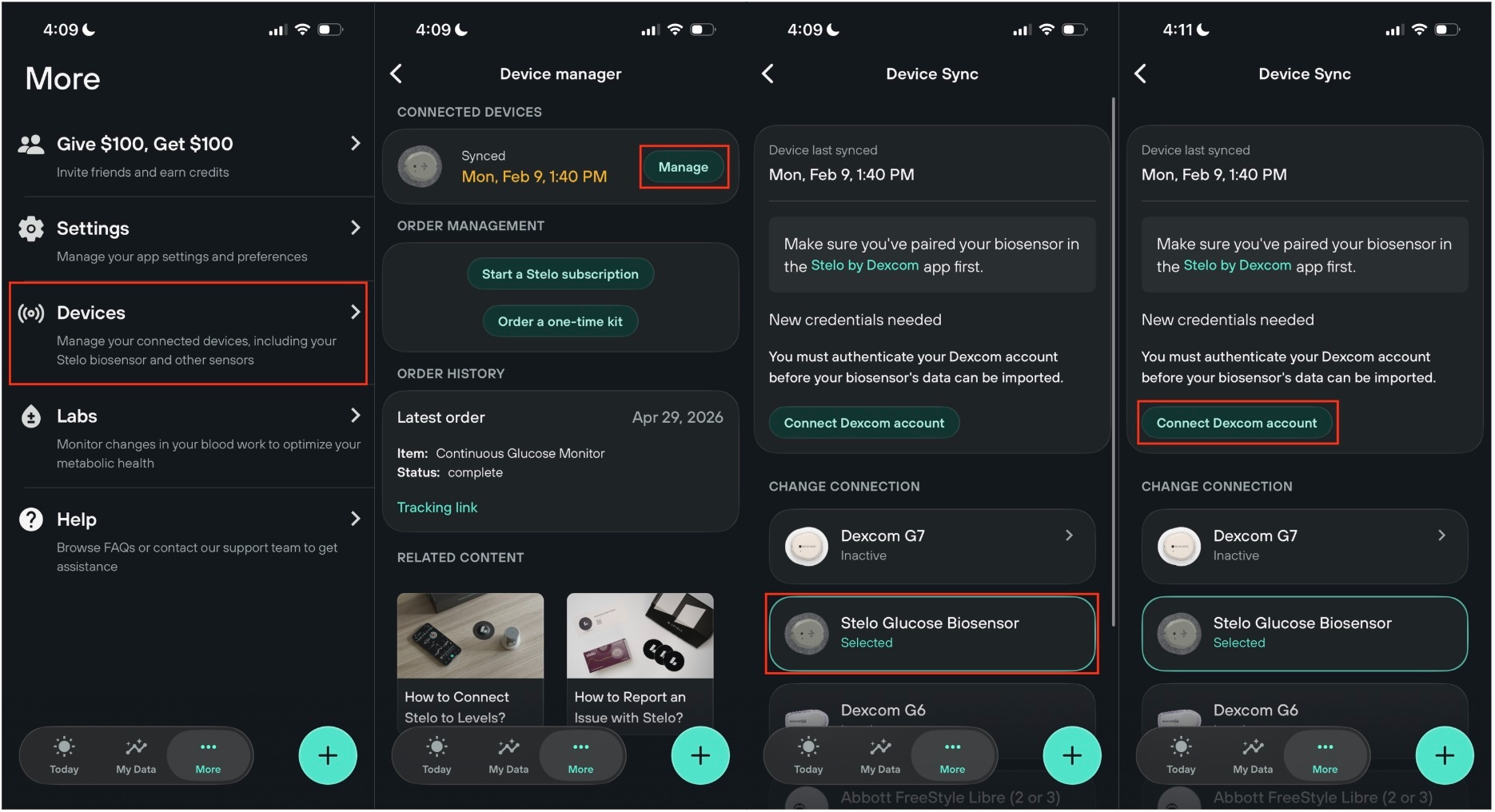
- Tap More → Devices
- Under Connected Devices, tap Manage
- Under Change Model, choose Stelo Glucose Biosensor
- Tap Connect Dexcom account
- In the pop-up, tap Connect, then follow the prompts to log into your Dexcom account
- If your mobile number is your Dexcom ID, tap Use it to log in first
- Review and agree to the Permission to Disclose and Authorization form
- You are all set. Your Stelo biosensor will start sending glucose readings to Levels within about 5 minutes.
What to expect
- Stelo measures glucose every 5 minutes.
- New readings show up in Levels within about 5 minutes. Make sure your Levels app is updated to the latest version.
- The Levels app displays glucose between 55–250 mg/dL. Learn more: Readings Below 55 mg/dL or Above 250 mg/dL.